Wayfinding Planner v1.5. Units, colours and control


What’s new#
Every wayfinding project has its own conventions: the units used on drawings, how sign types are identified, how messages are sorted, and what recipients expect in a report. Wayfinding Planner v1.5 gives you more control over those choices, from initial setup to exported deliverables.
Choose metric, imperial or mixed units, apply regional number formatting, edit sign type codes, and give each sign type its own custom colour. Manual messages can now use L-shaped and U-turn arrows, and managing signing-distance defaults for destinations and destination groups is made easier through project settings.
Although English (UK) is still the only interface and output language, the groundwork for more languages is now in place. We plan to add user interface languages gradually in upcoming releases, and would love to hear which language would make WFP more useful to you. Drop us a line at info@vlans.co to help us decide where to start.
Work in the units your project needs#
Your project can use metres or feet for walking distances and millimetres or inches for sign dimensions. These choices, along with geometry units, are independent settings in Project → Project properties....
The Metric and Imperial presets offer a quick starting point, and you can mix units if your project calls for it. Switching units keeps physical sizes, distances and the precision you entered intact. If you change your mind about a preset, Undo takes you back.
These choices travel with the project file, so colleagues see the same units when they open it.
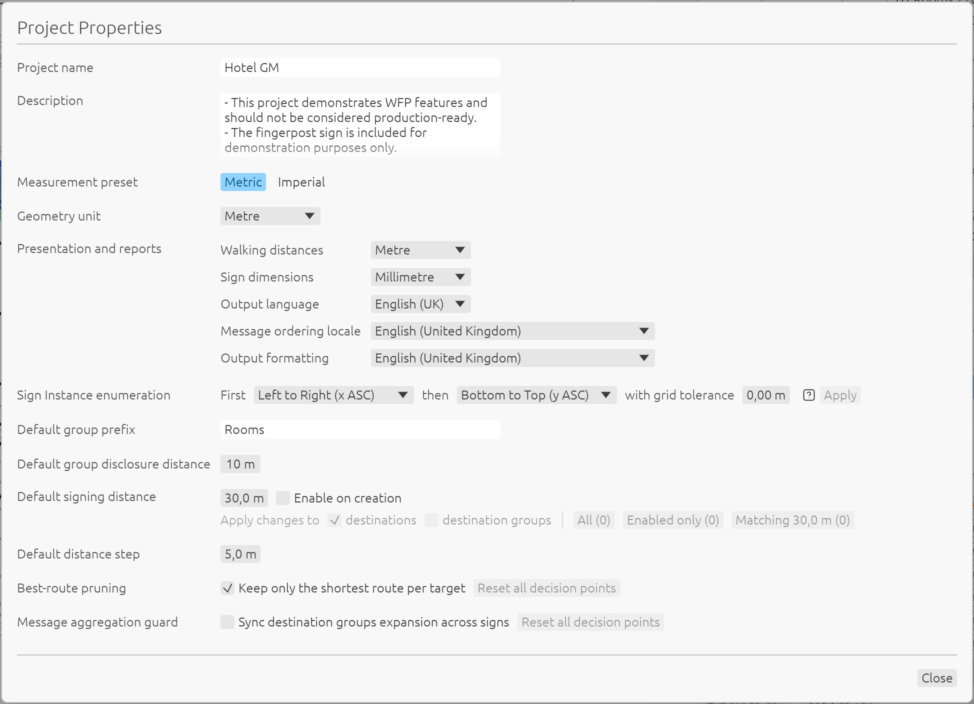
WFP v1.5 Project Properties showing measurement presets and output conventions
Keep personal preferences and shared output separate#
You might prefer one way of writing numbers and dates while your client expects another. WFP now accommodates both.
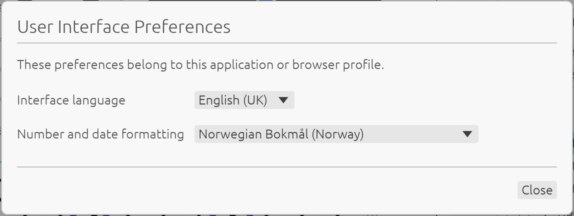
Your personal choices live in File → Preferences... and stay with your application or browser profile, on your machine.
Settings you share with the project are under Project properties... → Presentation and reports. Feel free to choose independently from 121 message-sorting conventions and 115 regional formatting variants for numbers and dates.
User Interface Preferences with English UK selected for the interface and Norwegian Bokmål selected for number and date formatting
Prepare reports for your recipient#
When a recipient needs different formatting, File → Export project reports... lets you change it just for that export. Your project defaults stay as they are.
For spreadsheets and other tools that rely on consistent column names and numeric conventions, Compatible CSV keeps those familiar structures. Localised report uses your chosen regional formatting and project units for reports intended to be read and shared. PDF and SVG location plans use the selected output conventions whichever CSV option you choose.
Our new Language, Units and Output guide covers these topics, please check it out for more details.
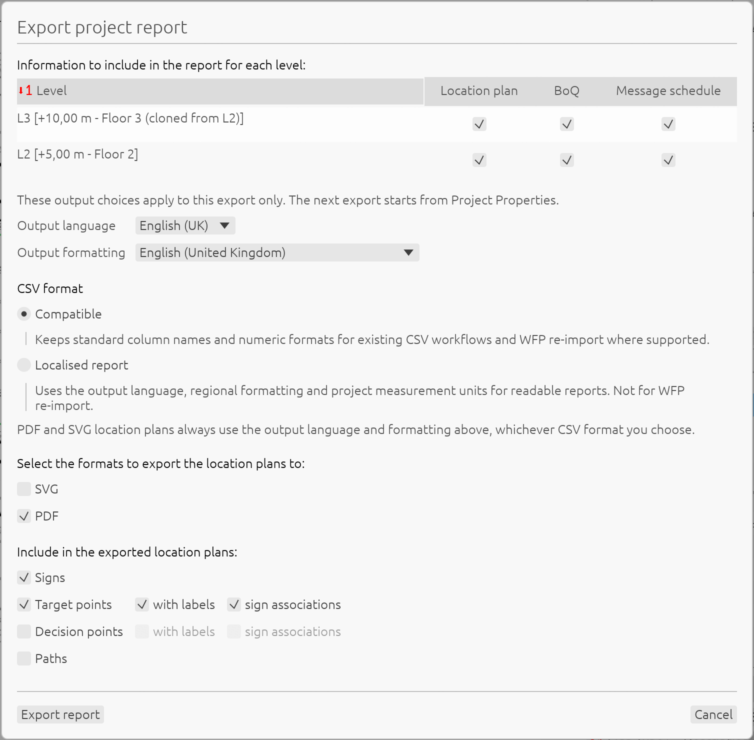
WFP report export dialog showing output formatting with Compatible and Localised report CSV options
Editable sign type codes and custom colours#
If a sign type needs a different Code, you can now edit it without recreating the type. WFP checks for duplicates and updates sign IDs across every level, preserving their instance numbers, placement and messages.
Colour can make a busy plan easier to read. Each sign type now has its own Colour and opacity, helping you tell types apart in both level views and exported location plans. Sign ID labels keep their readable text, with a coloured segment on the left. In the Sign Type manager, Save changes keeps your colour with the project. Reset offers the category's current default as a starting point.
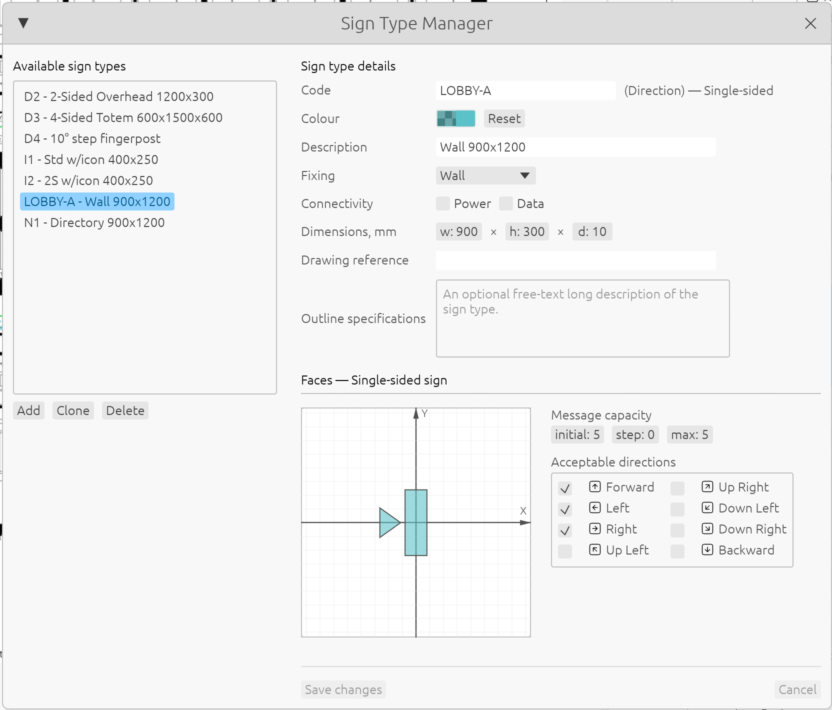
A custom code and colour give this sign type its own identity.
Put sign instance numbers in the order you need#
As project evolves, you may want a different numbering sequence. New editable enumeration directions set the order, while grid tolerance controls how nearby sign positions form rows or columns.
You can save your preferred defaults under Project properties... → Sign Instance enumeration → Apply. Existing IDs stay as they are until you choose to renumber them through Edit → Re-enumerate Sign IDs..., where you can select the scope and review which signs will change.
Remember that Re-enumeration cannot be undone, so save your project first. Afterwards, Copy mapping lists the old and new IDs to help you update external schedules or drawings, whenever relevant. Visit our User Interface guide for more details.
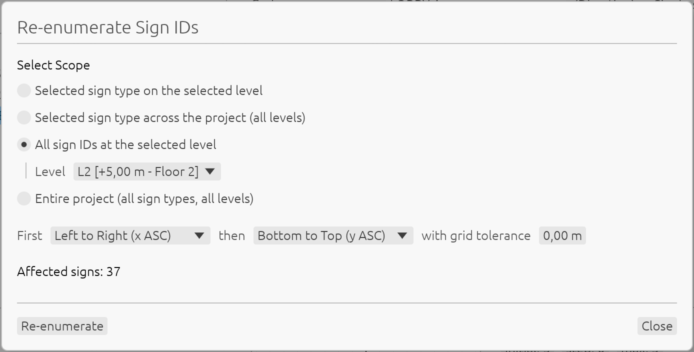
Review the scope, numbering directions and affected signs before re-enumerating.
Signing distance defaults#
If you often give new destinations and groups the same signing distance, you can now have WFP set it for every new destination or destination group you create. Enable on creation, under Project properties... → Default signing distance, applies the default signing distance as you create them.
When that default changes, you decide whether existing destinations, groups, or both should follow it. WFP shows how many entries will be affected before you apply the change. See Destination Dictionary for the available choices.
New manual directions with bent arrows#
For manual messages that need a bent direction, there are now four L-shaped arrows and clockwise/counterclockwise U-turn arrows. Their presentation order is adjustable in Project → Message display.... You only choose these arrows for manual messages; automatic routing continues to work as before.
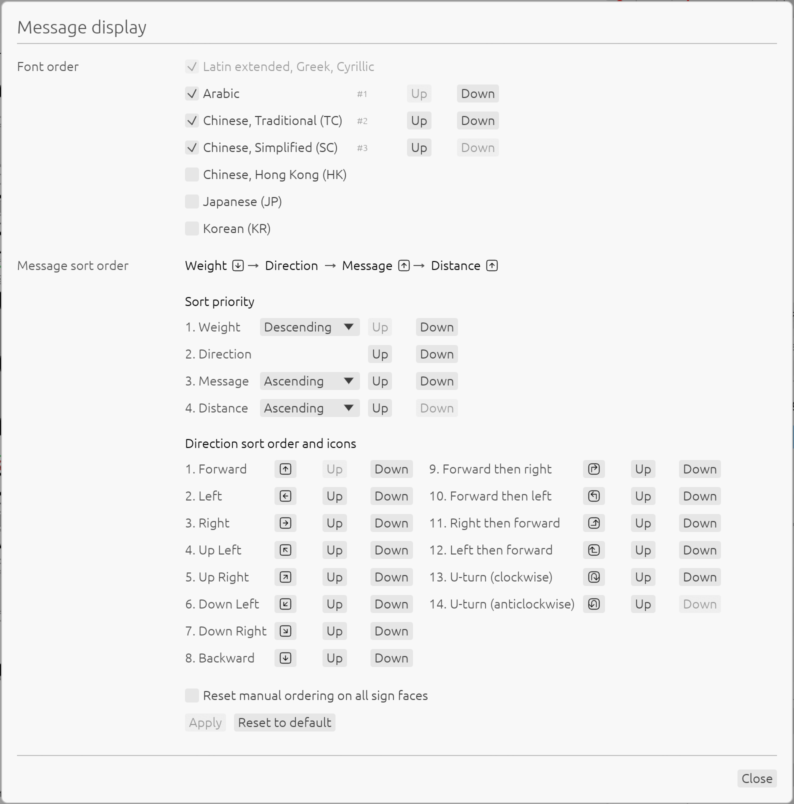
The new bent directions appear alongside the existing arrows in Message display settings.
Before updating an existing project#
WFP v1.5 can open all older version projects. Once you save a project in v1.5, it needs v1.5 or newer to reopen, even if you haven't used any new features. We recommend keeping the original and using Save As... for a separate v1.5 copy. If you're sharing the project, make sure your colleagues have updated their WFP application too.
If you process message exports in spreadsheets or scripts, check any formulas that match Direction values. CSV and clipboard exports now use names without spaces, such as `UpLeft`, `ForwardThenRight`, `UTurnCW` and `UTurnCCW`. Message Display and Ordering lists them all.
Upgrade to WFP v1.5#
On macOS, you'll find Help → Check for Updates... in the menu. Windows App Installer handles updates; portable EXE users will need a fresh download.
If you're still on v1.3 or earlier, you'll need to install the current stable release manually once. Our Installation and Activation guide will walk you through it.
New to Wayfinding Planner?#
WFP brings your path network, destinations, signs and messages together, ready to export as coordinated Sign Location Plans, Message Schedules and Sign Bills of Quantities.
Find out more:
- Visit our home page for a quick overview.
- Browse the support center for detailed workflows.
- Download Wayfinding Planner for macOS and Windows, or open it in your browser.